



Several users have reported encountering the Error 424 – Object Required in MS Excel while using queries to copy cell values from one workbook to another. This is a VBA error that usually occurs when Excel is unable to read the object you are trying to call in the macro. There are many reasons that can cause this error. In this article, we will learn about the possible reasons for this error and the solutions to fix it.
Why Runtime Error 424 Required object does it happen?
Error 424 indicates a problem with the object in the VBA code. You may get this runtime error in Excel for the following reasons:
- The VBA code object you are trying to reference is corrupted.
- Missing objects in an Excel file.
- The object you are trying to call in a macro does not exist.
- You may be using an incorrect name for the object.
- You are using incorrect queries.
- Typo or syntax error in method or variable declaration.
- The Excel file is corrupted.
- The object reference is not assigned correctly.
Methods to Resolve Runtime Error 424 Required object »
You can try the following methods to resolve runtime error 424 in Excel.
Method 1: Check VBA Code
Runtime error 424 in Excel can occur when there are issues in the queries you use to reference objects in VBA code. These include invalid range, incorrect or missing syntax, missing parameters/references, code containing an object that doesn't exist, wrong object name, and more. You can open the VBA Editor to review the VBA code and fix these issues.
Method 2: Deselect missing references
Runtime error 424 can also occur if your VBA code contains a reference to an object/type library, which is labeled as missing. You can search, check, and deselect the references marked as "missing" to resolve the error. Follow these steps:
- In MS Excel, press the keys Alt + F11.
- The window of theVisual Basic editor appears.
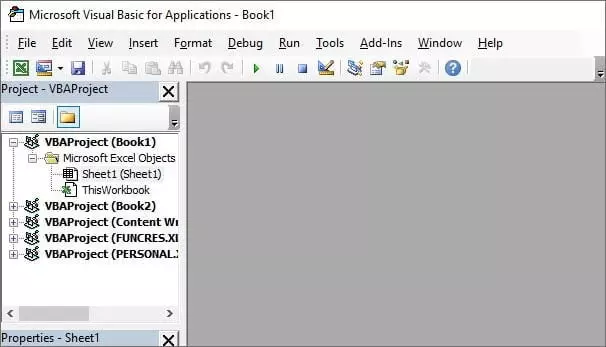
- Click the option Tools, then select References.

- The window References – VBAProject appears.
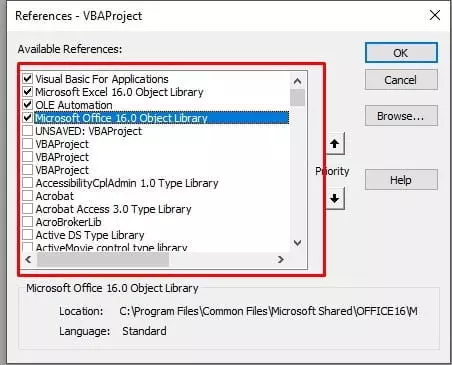
- Under References available, scroll down to find the references starting with “Missing” and deselect them.
- Then click on the option OKAY.
Method 3: Check macro security settings
You may encounter error 424 in Excel files that have macros. It usually occurs if macros are disabled in the macro security settings. You can check and enable macros by following the steps below:
- In Excel, go to the tab Junior Backend Developer (Intern) and select Macro security.
- In the window of Privacy Management Center, go to Macro Settings and click on the option “Enable VBA Macros”, And then OK.

Method 4: Check and remove add-ons
Sometimes, incompatible or faulty Excel add-ins can also cause errors. You can check and disable incompatible add-ins in Excel to fix the problem. Here's what to do:
- First, open the Excel application in secure mode by typing excel /safe in the run window (press Windows + R).
- Now try to open the Excel file in which you are getting the error. If it opens without error, check and disable any recently installed Excel add-ins.
- Go to the tab File And click Options.
- In the window Excel Options, select Supplements.

- Under Supplements, search for the latest add-ons. Click on reach.
- In the window Supplements, deselect the complementsAnd click OK.
- Restart your Excel application.
Method 5: Repair your Excel file
If Excel file corruption is the cause of the error, you can repair the file using the Open and Repair utility. This is a built-in utility in Excel that can repair corrupted Excel files. Follow the instructions below to use this utility:
- Open your Excel application.
- navigate toward File > Open > Browse.
- In the dialog box Open, select the relevant Excel file.
- Click the arrow next to the option open and choose Open and repair from the drop-down list.
- Click the option Fixing to retrieve as much data (objects) as possible from the file.
If your Excel workbook is severely corrupted, you need a excel repair tool specialized such as Stellar Repair for Excel. It is an ultimate tool that can easily repair corrupted Excel files (.xls, .xlsx, .xltm, .xltx, and .xlsm). It can recover all data from a corrupted Excel file. It helps you to fix common corruption-related errors including Runtime Error 424. You can install this tool on any Windows system. You can download the demo version of the software to scan and preview the corrupted Excel file.
Conclusion
Runtime error 424 – Object Required can occur when references are missing or references have not been set correctly in the code. You can try the troubleshooting methods described above to resolve the issue. If you are getting this error due to inconsistencies caused by Excel file corruption, try an Excel repair tool such as Stellar Repair for Excel. This is a professional tool that contains more advanced functions than Excel's built-in utility. It can repair multiple Excel files at once. Moreover, this tool is compatible with all versions of Excel, including Excel 2019.