



Ever since I got an iPhone (and even before when I had an iPod) I've been ranting about iTunes for Windows which is a really bad music player... too complicated, poorly organized... this great Apple classic has never convinced me.
Some time ago, I decided to test a lot of free or more or less free software to try to find an alternative allowing me 1/ to manage my music library on my PC, 2/ to have an ergonomic player and 3/ to be able to synchronize my music and my playlists with my iPhone.
After a bit of hesitation, I finally settled on MusicBee, which best met my expectations. At least that's what I thought... So I took my entire music library, cleaned it, recreated playlists... and wanted to sync everything with my iPhone. And then, bang... impossible to start a sync (thank you Apple for making sure that nothing is simple outside of your ecosystem). But after all the time spent organizing my music, I didn't want to admit defeat.
With the help of my friend Google, I found some poorly documented traces of an old plugin for MusicBee allowing synchronization with iOS… But when I read the description of the plugin on its dedicated page on the MusicBee website, I started to worry: " The plugin has been tested with iTunes 9 and will probably not work with higher versions of iTunes."...
No matter, I still gave it a try, even though iTunes 9 was released in 2009… and it worked. But the installation and configuration of the system deserve some explanations that I will give you below.
One small drawback though, the synchronization uses iTunes to send the music to your iDevice… so unfortunately you won't be able to do without Apple's software… but at least you can manage all your music with MusicBee!
Sync your music to iPhone with MusicBee
For this short tutorial, I'm assuming you already have iTunes installed and MusicBee on your computer (or at least that you are able to do so).
1- Install the iPod & iPhone Driver plugin for MusicBee
Installing a plugin on MusicBee always happens in the same way. To start, you need to download the iPod & iPhone Driver plugin.
Then extract the contents of the archive you just downloaded into the MusicBee plugins folder which is usually located here: C:\Program Files (x86)\MusicBee\Plugins.
2 – Configure iTunes correctly so that syncing works
The iPod & iPhone Driver plugin will use iTunes to sync your music and playlists to your iOS device. But for this to work properly, you'll need to do a few small configuration items.
First, you will need to clear your iTunes music library before using the plugin. To do this, select all the music in iTunes, right-click and choose the option " Remove from library » (this will not normally delete your music from your computer, just from the iTunes library… but feel free to test to reassure yourself).
See you in Edit > Preferences to open the General Preferences menu.
In the tab advanced, make sure the following options are correct unchecked :
- Let iTunes organize the iTunes Media folder
- Copy files added to the library to the iTunes Media folder

In the Devices tab, make sure the following option is selected: checked :
- Prevent the automatic synchronization iPods, iPhones and iPads

You can now close the preferences window.
Connect your iPhone to your computer and select it in iTunes.
In the game Summary settings specific to your iDevice, Uncheck all the boxes in the Options section, like this :

Then go through all the media tabs on your device, always from iTunes (Music, Movies, TV Shows…) and make sure that only the option “ Sync Music » is checked (all the others must therefore be… unchecked!):

3 – Synchronize your music
Now that the plugin is installed and iTunes is properly configured, go back to MusicBee.
Go to Edit > Edit Preferences > Plugins.
Locate the iPod & iPhone Driver plugin and enable it if it is not already enabled.

Then connect your iPhone to your computer.
In the Tools tab, select Turn iPod & iPhone Driver on. iTunes should then open in the background. You are finally ready to start syncing!
Then click on the small smartphone symbol present somewhere on the MusicBee interface (this will depend on how you have configured the software) and select iPod & iPhone Driver.
Then arrange to end up on the tab corresponding to iPod & iPhone Driver.

This is where you will be able to choose what you want to sync… either your entire MusicBee library or specific playlists.
Then press Synchronize
The plugin will then process your music files and recreate your library in iTunes to sync your music and your playlists on your iPhone.
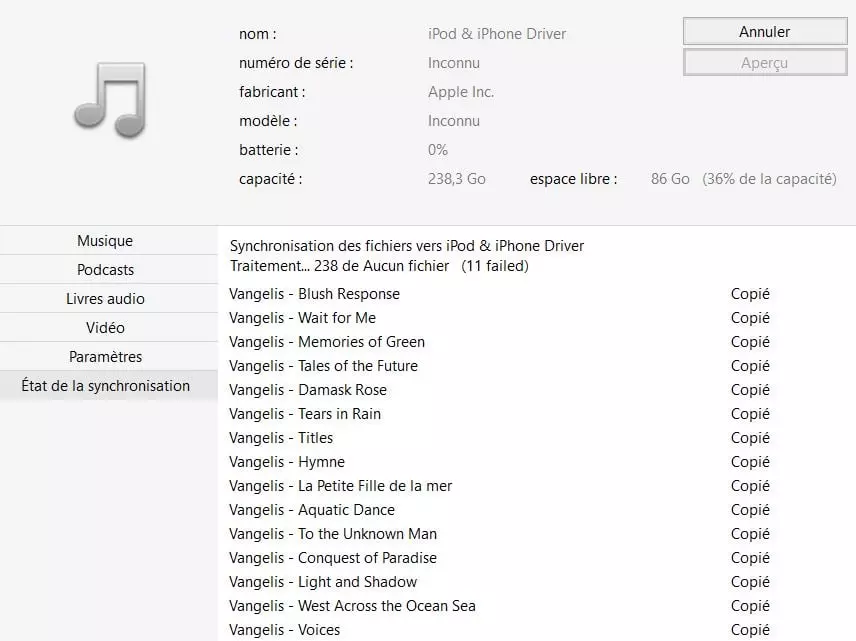
Then, normally, the sync should start between iTunes and your device… If this is not the case, you can manually start the sync from iTunes.
From then on, you can redo the last steps of this tutorial whenever you want to update your music on your iPhone!
In the end, the plugin seems a little capricious, but by insisting a little we end up arriving at the expected result… and it even works rather well!
Feel free to comment on this tutorial if you have other solutions to sync your music from MusicBee to an iOS device!






Hello, I got an old iPhone (a 2 I think) that I wanted to use as an mp3 player for my son. I tried to follow these steps but I find myself stuck because iTunes can't access the iPhone because of a Windows driver that I can't find.
When I try to sync directly from Music Bee, I get stuck because it doesn't accept any path I propose for the storage folder. Do you have any idea? Thanks in advance
arf… as long as you can't get the iPhone and iTunes to communicate, it seems impossible to me… synchronization with Music Bee necessarily requires going through iTunes…
Hello, the tutorial is great but it blocks me when syncing,
The storage folder "Apple Ipad \internal\ storage\music\ no longer exists and may need to be changed in the device's sync preferences, ?
Do you have a solution for me, thank you very much
Normally the MusicBee library is now synced to iTunes.
Can you try syncing directly from iTunes?
Hello Byothe, yes it works through Itunes but I don't want to go through itunes anymore because it doesn't copy all the songs that's why I'm looking for another program. I'm going to try again today and if it still doesn't work I'll fall back on another program, it's a shame because I liked MusicBee, and in any case thank you. greetings
ah yes indeed…
Sorry but the above method requires you to go through iTunes at some point…
iTunes serves as a gateway between MusicBee and the iPhone/iPad
Hello, this process does not copy all the music, for some I have the message: Copy failed -failed to add track to itunes library. Could you tell me why?
Same, a good part of the music displays the message "copy failed the object reference is not set to an instance of an object" and I don't understand why.
Thank you for your tutorial!
Hello,
Thank you for this post already.
I'm stuck at the next step:
In the Tools tab, select Turn iPod & iPhone Driver on. iTunes should then open in the background. You're finally ready to start syncing!
In the Tools tab, I don't see Turn iPod & iPhone Driver on.
I took screenshots, but I can't post them.
Thank you in advance for your help.